
The console is a web interface served by the agent itself. There is no separate web server to install and nothing to connect to the internet.
https://localhost:8443
Signing in
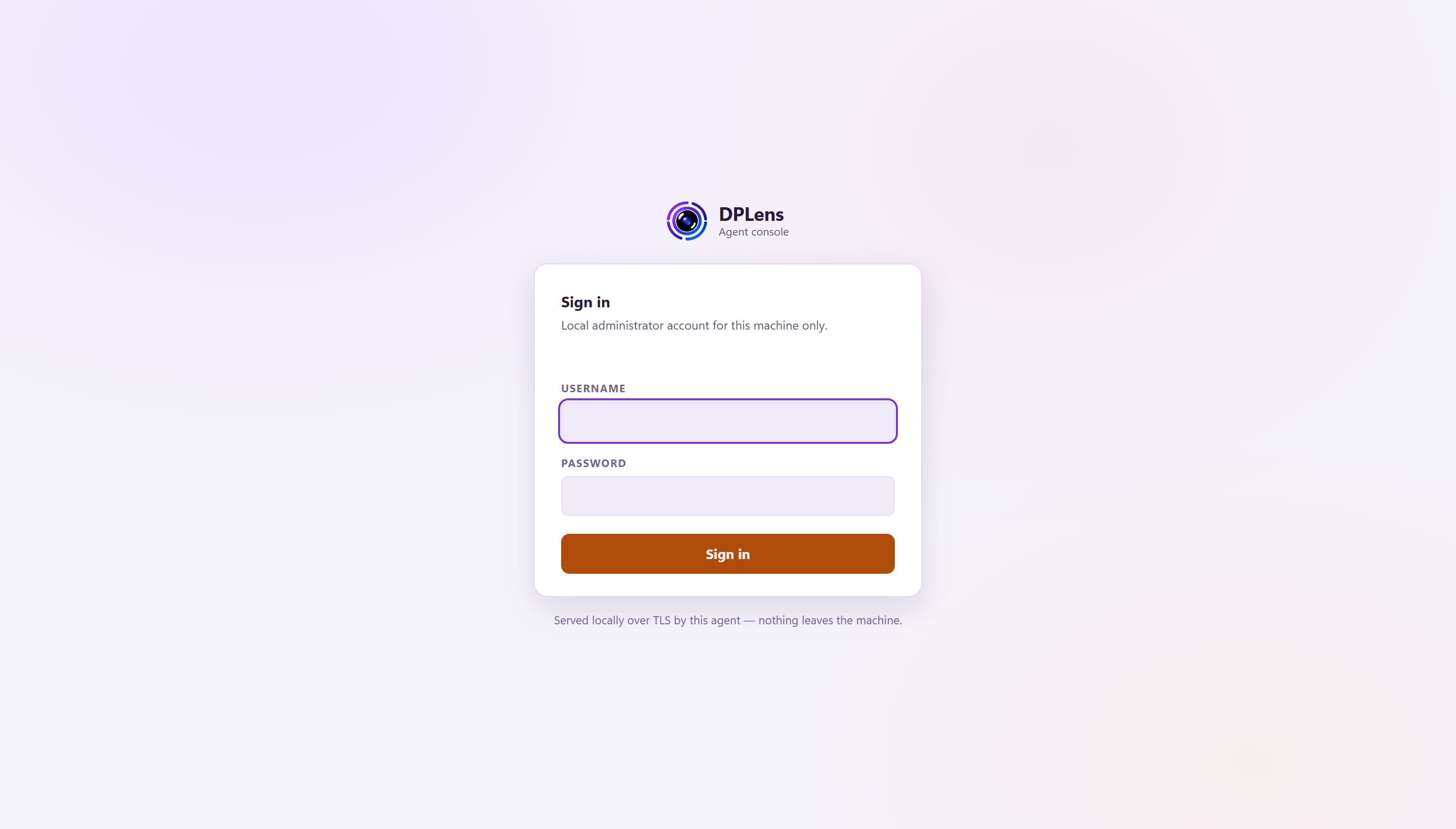
Sign in as admin with the password set at install time. If no password was set, the console asks you to create one now.
The account is local to this machine. It is stored as a password hash, so it cannot be read back or recovered — if it is lost, an administrator on the machine sets a new one:
"C:\Program Files\DPLens\dplens.exe" --set-admin-password
The password is read from standard input, so it never appears in a command line or a process list.
Repeated failed sign-in attempts are throttled, with the delay growing each time. A successful sign-in clears it.
The certificate warning
On a new installation the agent generates its own certificate, which your browser has no reason to trust. Getting past the warning is expected. To use a certificate from your own authority instead, see Replacing the console certificate.
Reaching the console from another machine
By default the console listens on localhost only. To reach it from elsewhere, turn on remote access and list the networks allowed to connect — Settings and audit → General → Console access. Remote access cannot be switched on without an allow-list.
Finding your way around
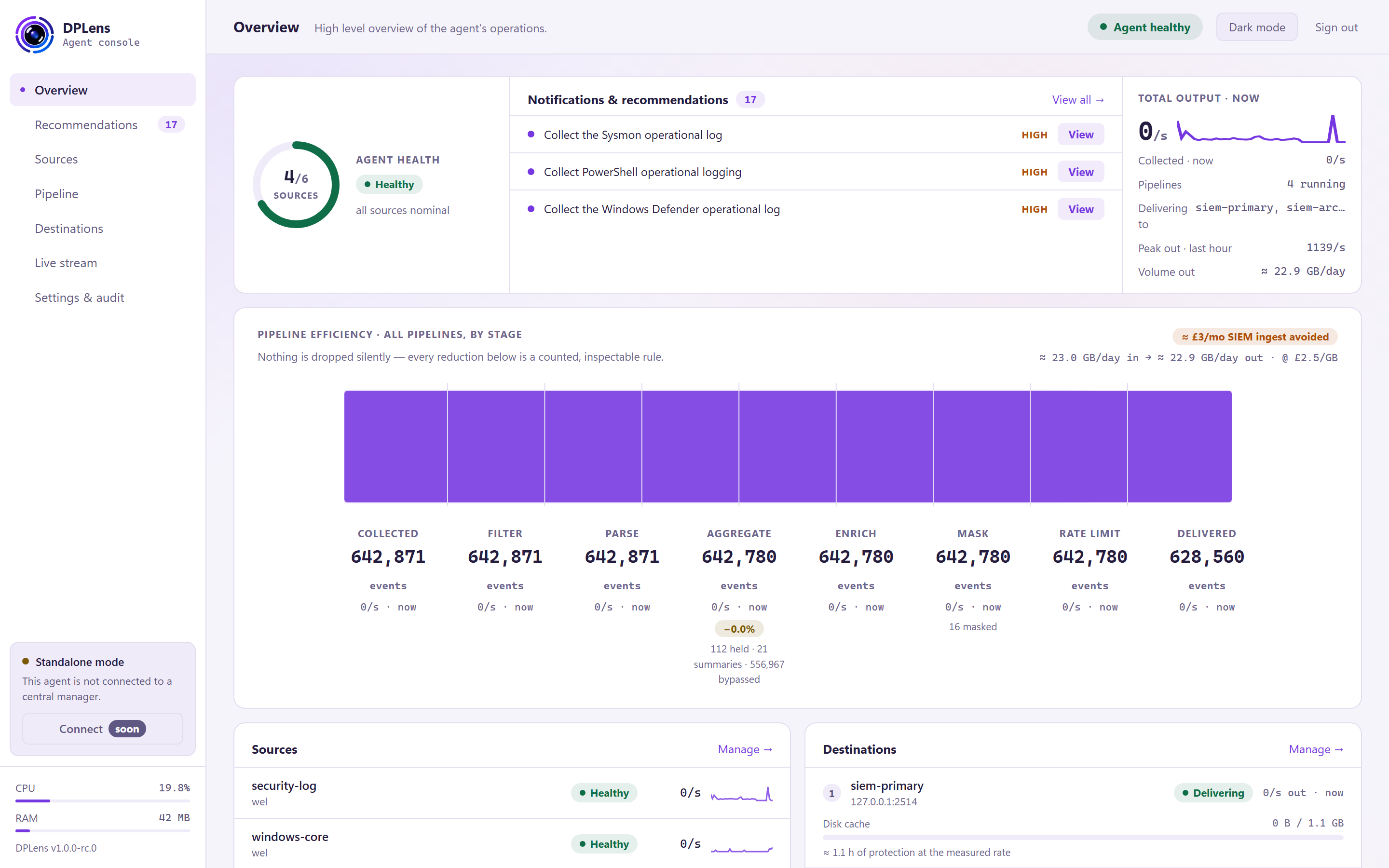
The navigation panel on the left has seven pages:
| Page | What it is for |
|---|---|
| Overview | How much you are collecting, what each stage removes, and what is being delivered |
| Recommendations | What this machine has that is worth collecting |
| Sources | The collectors you have configured |
| Pipeline | What happens to events between collection and delivery |
| Destinations | Where events go, and how delivery is holding up |
| Live stream | Events as they leave, in real time |
| Settings and audit | Agent settings, security, licence and the audit log |
Below the navigation, two gauges show the agent's current CPU and memory use, and the version you are running.
Along the top of every page:
- The health indicator. Click it for a breakdown of what is and is not healthy.
- A light and dark theme toggle. Your choice is remembered in the browser.
- Sign out.
Staged changes, apply and roll back
This is the part of the console most worth understanding, because it is not how most tools behave.
Almost nothing you change takes effect when you save it. Edits to sources, stages, destinations and settings are staged as pending changes. The three exceptions are listed below.
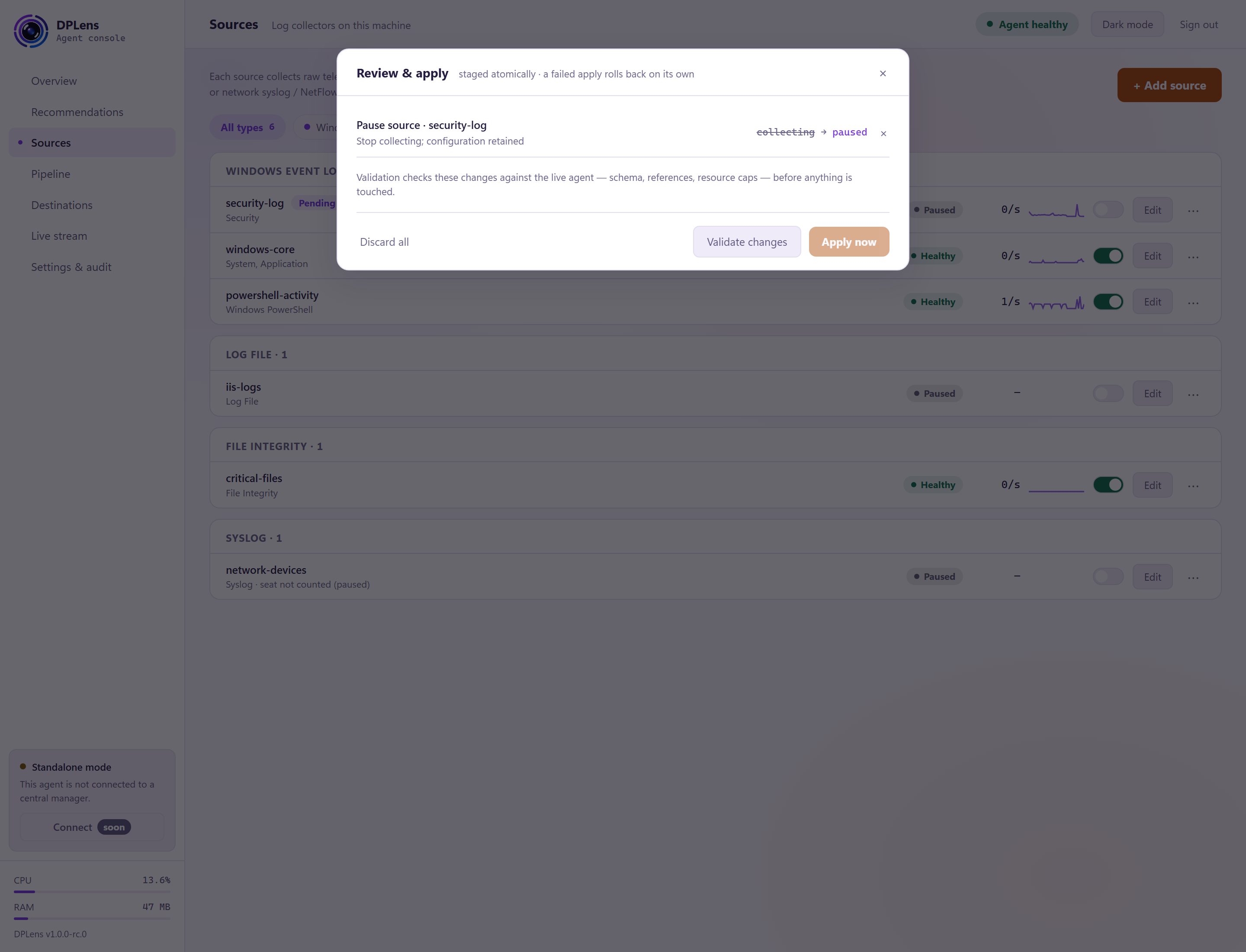
Reviewing
The pending changes indicator in the header counts what is waiting. Open it and you get a plain summary of what will change, item by item. You can:
- Apply the whole set, or
- Discard it and go back to what is running.
Changes apply as one set, never one at a time. That is deliberate: a source and the pipeline that reads it can be added together without ever existing in a half-configured state.
Applying
When you apply, the agent validates the entire configuration first — not just what you changed. If anything is wrong, the apply is refused and the running configuration is untouched. You get the reason, fix it, and apply again.
Rolling back
If the configuration applies but the agent does not come back healthy, a bar appears with a countdown and a Roll back button. Rolling back restores the previous configuration.
This is the safety net for a change that is valid but wrong — a destination address with a typo in it, a filter that turns out to drop everything.
Changes that apply immediately
Three things do not go through staging:
- Changing the console password — not part of the collection configuration.
- Installing a console certificate — likewise.
- Add with defaults on the Recommendations page, which configures and applies a source in one step. It is validated first and gets the same rollback countdown as any other apply, but there is no pending-changes step in between.
Everything else waits for you to review and apply it.
What the console can and cannot do
The console runs as a separate process with fewer privileges than the collection service. It cannot read your event logs, cannot reach your destinations, and cannot read the secret store. It asks the collection service to do those things and shows you the answers.
That means a fault in the web interface cannot become a fault in collection, and cannot reach the machine's privileges.
It also means some things are deliberately not available in the console:
- Secret values cannot be read back. You can set a secret and see that a handle is in use. You cannot see what is behind it. Neither can the console.
- Licence keys are not shown. The Licence page shows what the licence covers and when it expires, never the key itself.
- Masked values are never shown, including in the live stream.
Turning the console off
On machines managed entirely by configuration, you may not want a console at all. Install with CONSOLE=off, or set:
settings:
  ui:
    enabled: false
No console process runs. Turning it back on means editing the file and restarting the service — it cannot be re-enabled from a web interface that is not running.