
A source is one collector: a set of Windows Event Log channels, a file or glob, a set of watched paths, or a network port that receives from other devices.
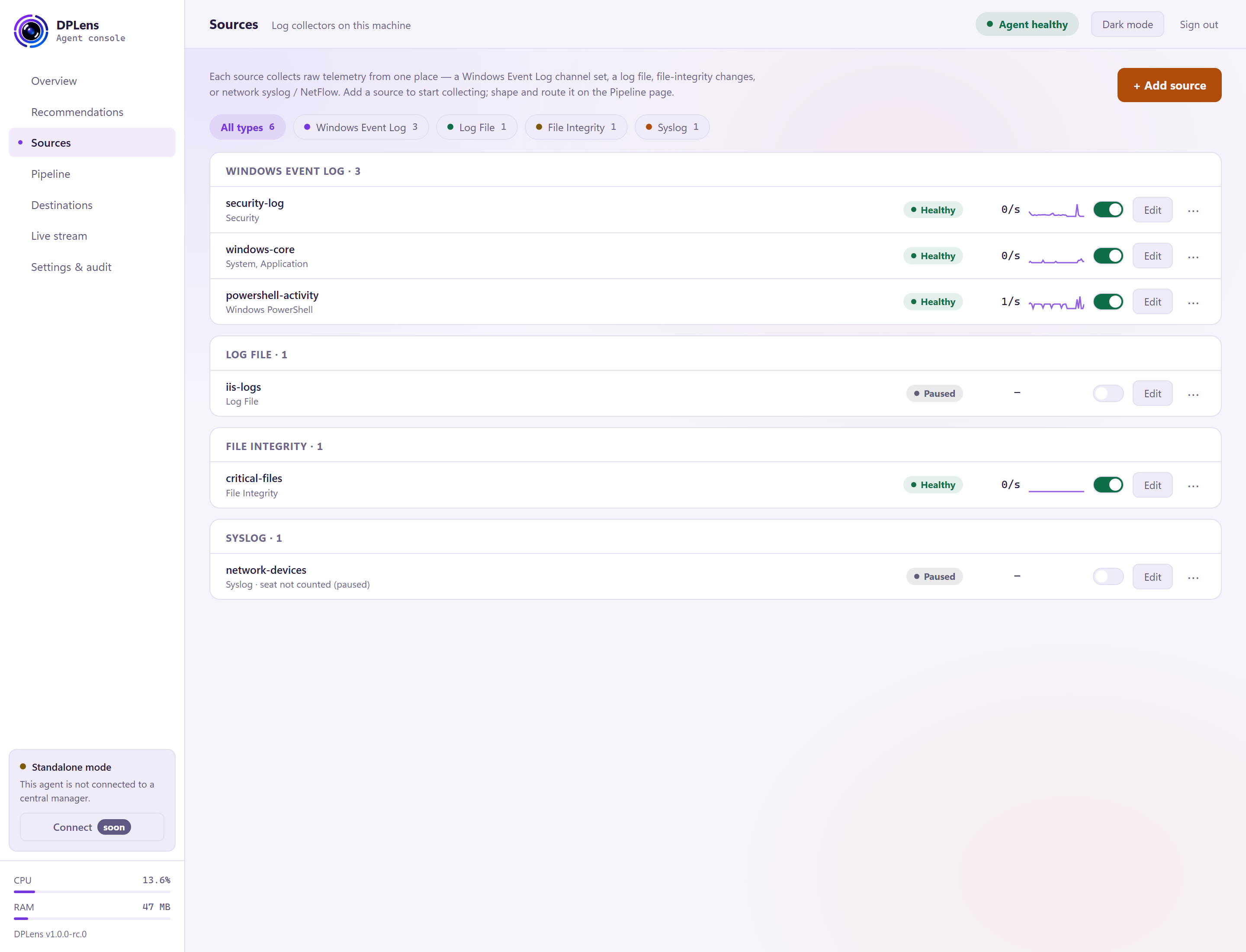
The list
Filter chips across the top narrow the list by type — Windows Event Log, Log File, File Integrity, Syslog, NetFlow.
Each row shows:
| Column | What it tells you |
|---|---|
| Name and type | The name you gave it |
| Health | See below |
| Rate | Events a second right now |
| Switch | Pause or resume collection |
Health
| State | Meaning |
|---|---|
| Healthy | Collecting normally |
| Restarting | Failed and being restarted automatically |
| Quarantined | Failed repeatedly and stopped, so it cannot affect anything else |
| Stopped | Not running |
| Paused | You switched it off |
| Pending | Configured but not yet applied |
| Not applied | Staged, waiting for you to apply |
Pausing
The switch pauses collection for that source. Windows keeps the events in its own log while you are paused, so resuming picks up from where you stopped rather than skipping the gap — within the limits of the channel's own size.
Pausing is a staged change like any other.
Row actions
The ⋯ menu on each row:
| Action | What it does |
|---|---|
| Edit source | Reopen the wizard on this source |
| Send test event | Push one synthetic event through the pipeline to a destination, to prove the path end to end |
| Stream live events | Jump to Live stream filtered to this source |
| Re-baseline… | File-integrity sources only — see below |
| Delete source | Remove it |
Send test event
Useful when you have configured a destination and want to know whether it works before waiting for real traffic. The event is marked as a test, travels the whole pipeline including masking, and arrives at the destination you choose.
Re-baseline
For a file-integrity source, the baseline is the recorded state of the files it watches. Changes are reported against it.
Re-baselining accepts the current state as the new normal — do it after a planned change, such as a patch or a deployment, so the next scan does not report the whole change set again. You can re-baseline one watch item or all of them. Either way, the action is recorded in the audit log.
Adding a source
+ Add source opens the wizard.
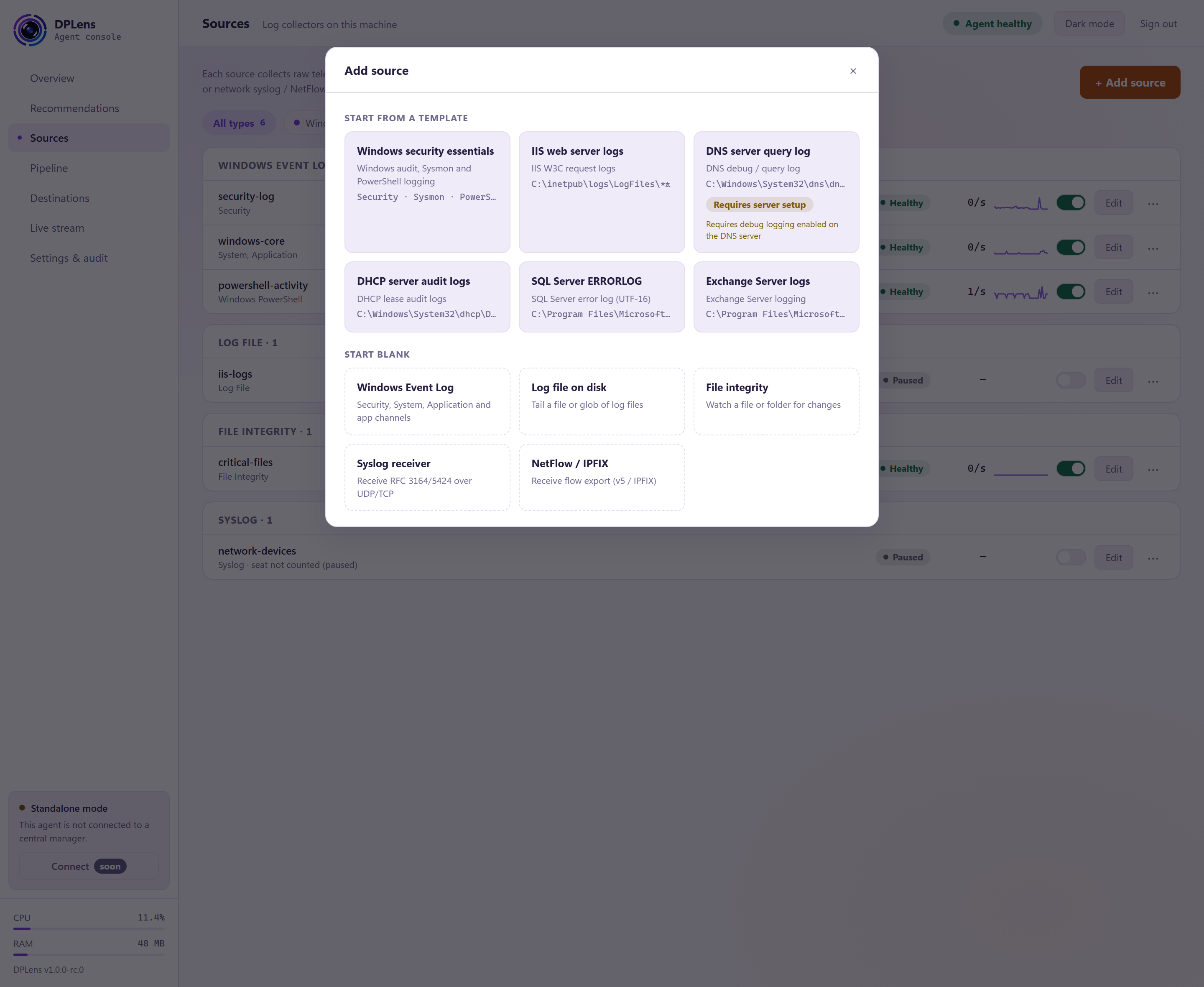
You can start from a template — a ready-made source for a common case, such as Windows security essentials, IIS logs, DNS query logs, DHCP audit logs, SQL Server error logs or Exchange logs — or start blank and choose the type yourself.
Templates tell you exactly what they will read, and warn you where the source needs to be switched on in Windows first.
Windows Event Log
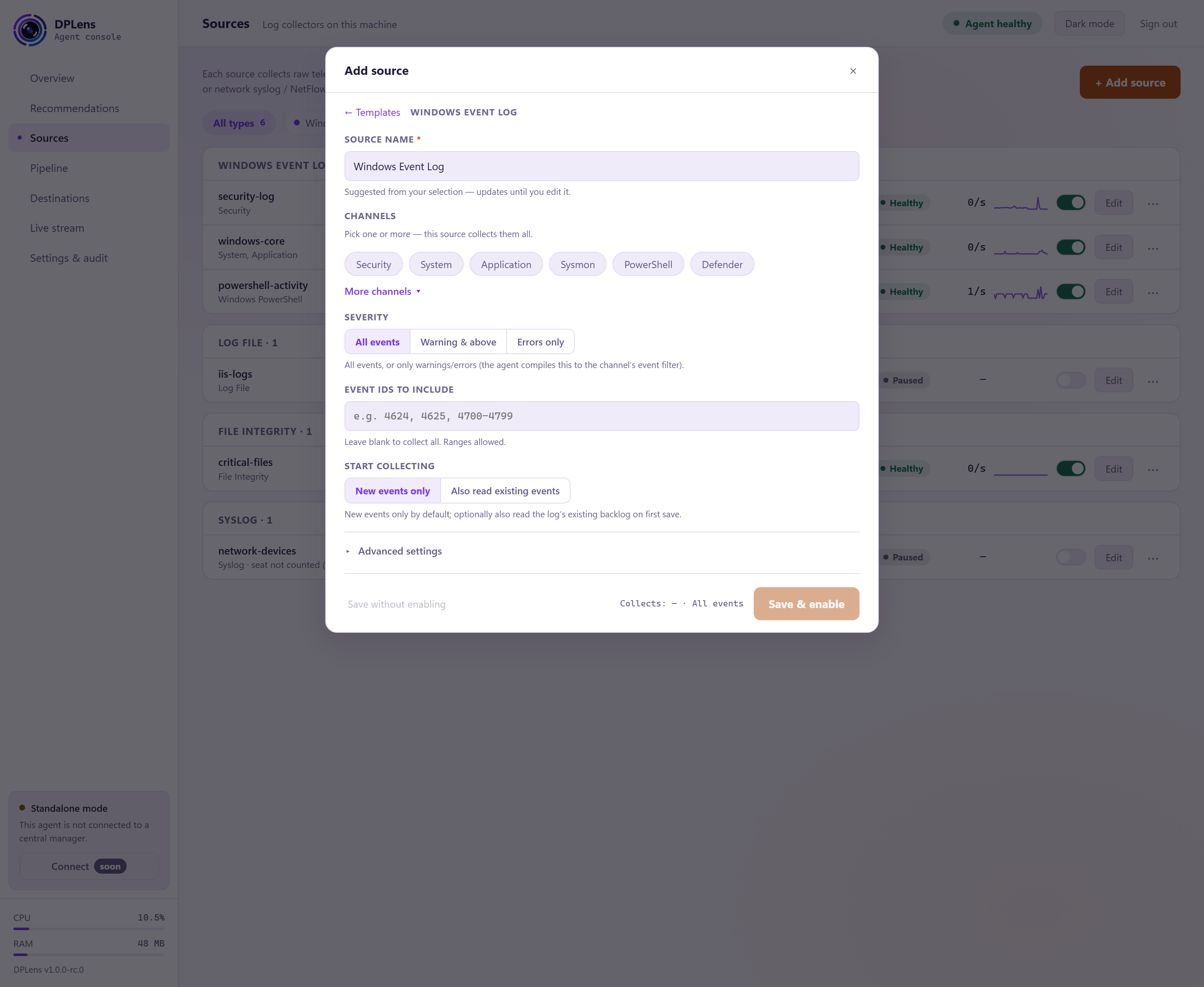
| Setting | What it does |
|---|---|
| Source name | Suggested from your choice, and it keeps updating until you edit it. |
| Channels | The channels to collect — one source collects them all. Pick from the offered set, or use More channels to choose any channel on the machine, including custom ones. |
| Severity | All events, Warning & above, or Errors only. The agent compiles this into the channel's own filter, so events below the level are never read. |
| Event IDs to include | Collect only these. Ranges are allowed. Leave it blank to collect all. |
| Start collecting | New events only (the default), or Also read existing events to take the log's existing backlog on first save. |
Under Advanced settings you will also find the remaining options for the source, including excluding event IDs, restricting to named providers, supplying your own event query in place of the filters above, message rendering, and throughput tuning. The defaults suit most machines.
Message rendering is the one worth knowing about: it resolves each event's human-readable message text. Off is fastest; turn it on when your receiver expects rendered text — a Snare collector's category column, for instance.
Filtering here is the cheapest filtering available — the events are never read in the first place. Prefer it over a pipeline filter when you know a whole event ID is of no interest.
Log file on disk
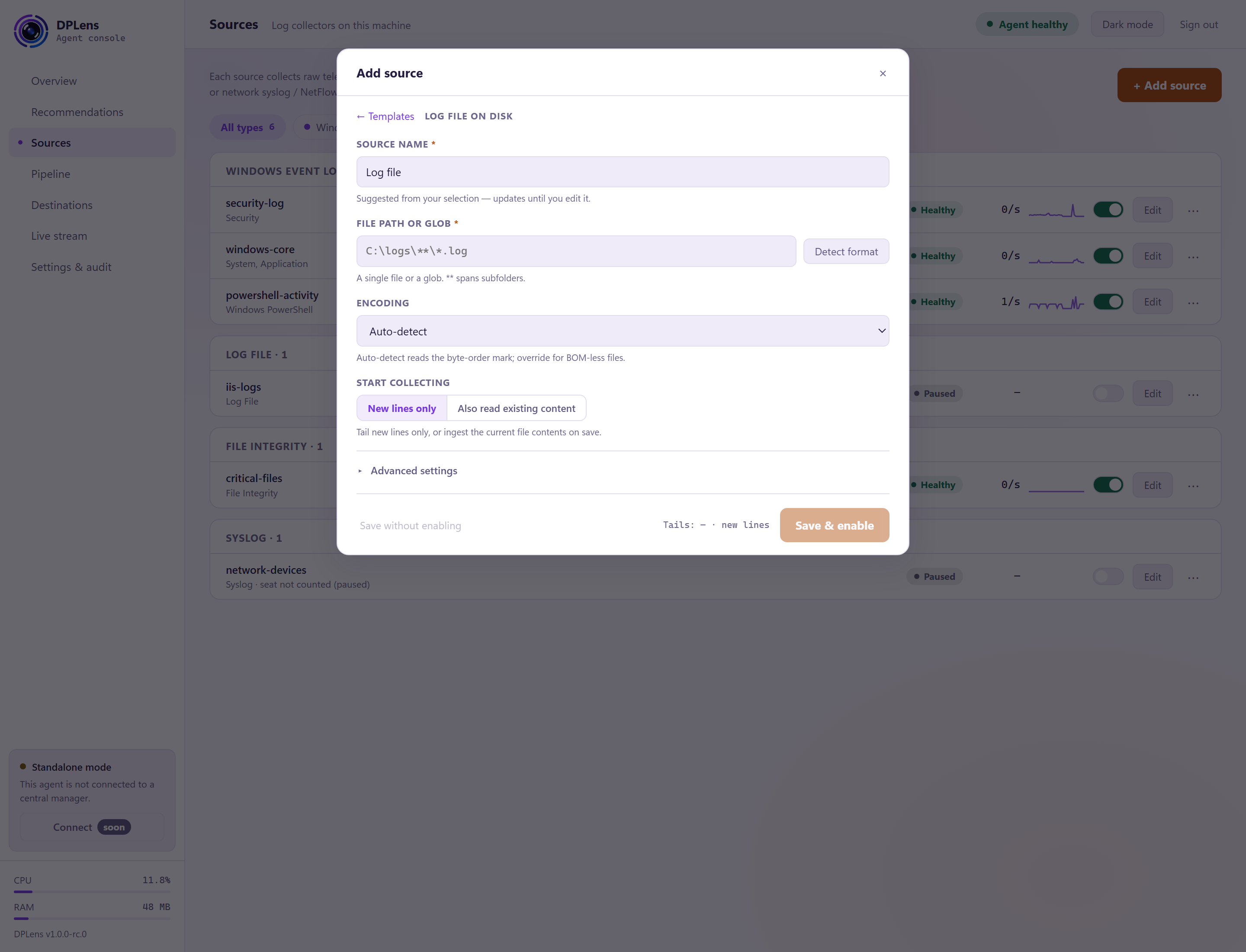
| Setting | What it does |
|---|---|
| File path or glob | A file, or a wildcard such as C:\logs\app*.log. New matching files are picked up; rotated files are followed. |
| Detect format | Samples the file and suggests the encoding. |
| Encoding | Auto-detect, UTF-8, UTF-16 LE or UTF-16 BE. Auto-detect handles most files, including the UTF-16 ones some Windows products write. |
| Start collecting | New lines only, or Also read existing content to take the file you already have. |
Include and exclude patterns, and the remaining tuning, are under Advanced settings.
File integrity
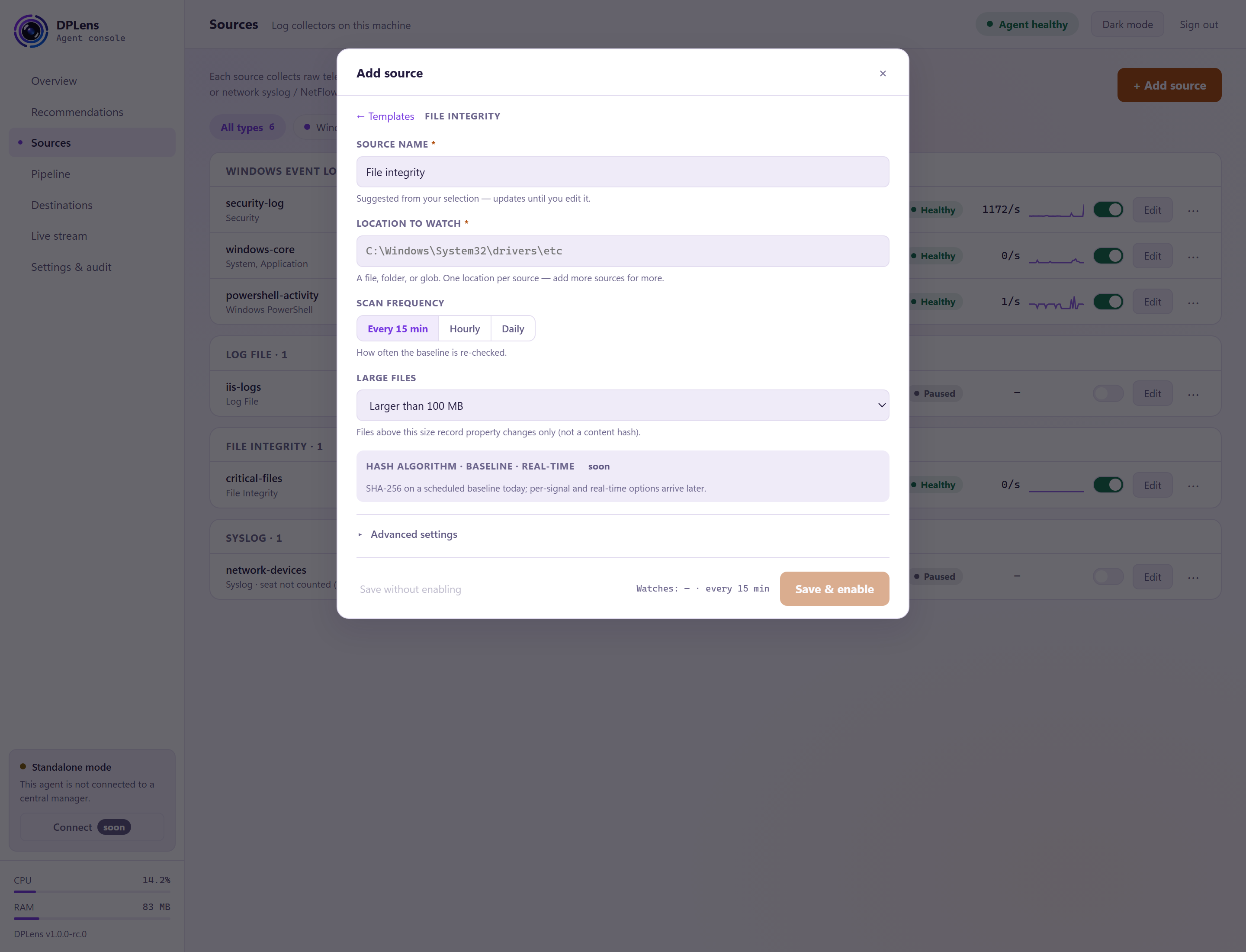
Each watch item is a path and a schedule:
| Setting | What it does |
|---|---|
| Location to watch | A file, a folder, or a wildcard. |
| Include subfolders | Walk the tree below it. |
| Scan frequency | Every 15 min, Hourly or Daily. |
| Large files | Above the size you choose, track the file by its properties — size, timestamps, permissions — rather than by reading it, so one very large file cannot dominate a scan. |
Include and exclude patterns are under Advanced settings.
Changes are reported as events like any other, so they flow through your pipeline to your SIEM.
Syslog and NetFlow receivers
For collecting from other devices — firewalls, switches, appliances.
| Setting | What it does |
|---|---|
| Listen port | The port to receive on — conventionally 514 for syslog, 2055 for NetFlow. |
| Protocol | Syslog: UDP or TCP. NetFlow: UDP (v5 + IPFIX) or TCP (IPFIX). |
| Allowed networks | Which addresses may send. Set this. Left empty, the receiver accepts from anything that can reach the port. |
Each enabled receiver uses a licence seat. See Licensing.
Remember the firewall: Windows will not let traffic reach the port until you allow it.
Saving
Save stages the source and enables it. Save without enabling stages it switched off — useful when you are preparing a configuration you do not want running yet.
Either way, nothing happens until you review and apply. See Using the console.